Extension usage (v0.1.x)
This page covers the Page Proxy extension workflow in v0.1.x: sidepanel tools, code editor behavior, and selector popup flow.
Sidepanel layout and shortcuts
The sidepanel has:
- A code editor panel at the top.
- A tool panel at the bottom.
- A toolbar on the top for switching tools.
Toolbar shortcuts:
Shift + 1: SelectShift + 2: CreateShift + 3: SelectorsShift + 4: HelpShift + 5: Export
Code editor
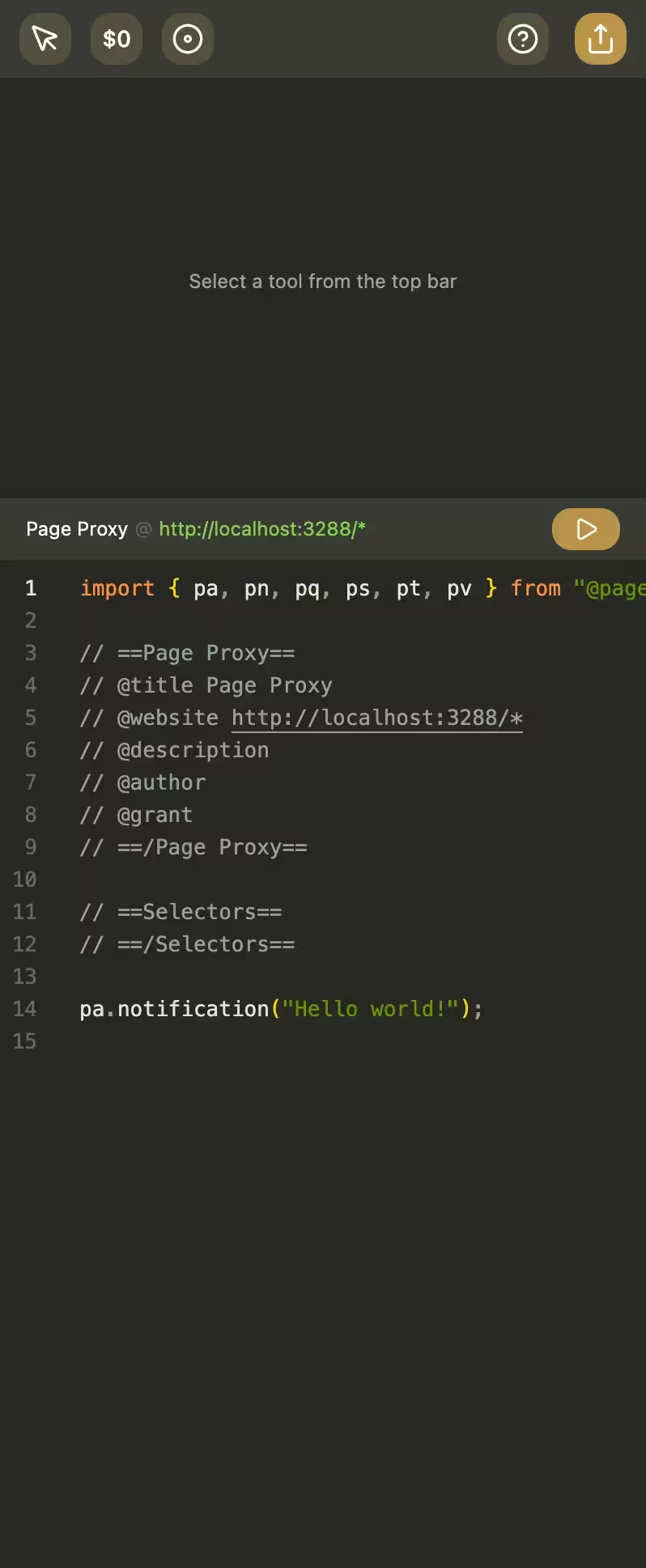
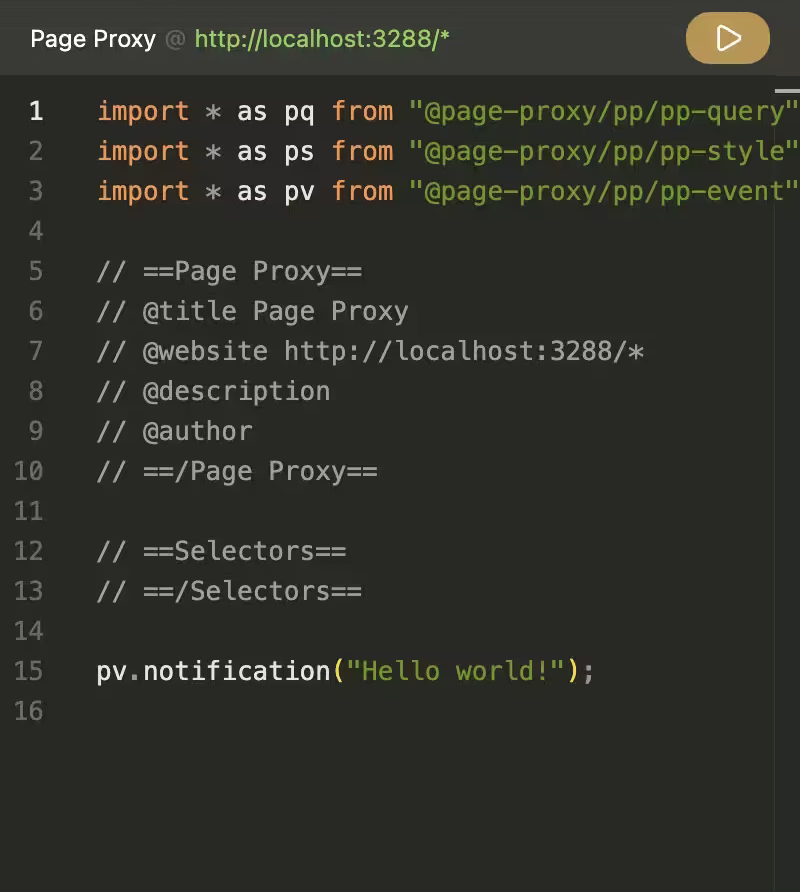
The editor is where you edit code and run it on the active tab..
What it does:
- Keeps
pq,ps, andpvimports in your script. - Uses a selector definition block:
// ==Selectors==// ==/Selectors==
- Parses script metadata and selector definitions as you edit.
- Autosaves after a short delay when content changes.
- Supports manual save with
Ctrl+S/Cmd+S. - Runs your script with the Run button (play icon).
- Script runs with a 2-second timeout.
- If the run button is still disabled even after 2 seconds, it's a bug, please report it.
- Stores state per website/tab context.
On protected pages (for example browser internal pages), editing and execution are disabled and a protected-page message is shown.
Select tool
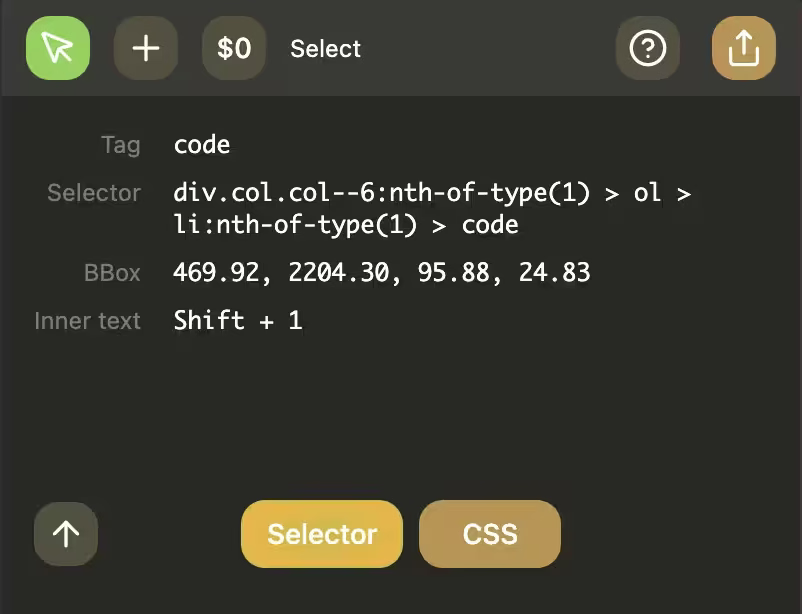
Use Select to inspect elements on the current page.
- Activate Select (
Shift + 1). - Click an element on the page.
- Review captured properties in the Select panel.
- Use the parent button (up arrow) to move one level up in the DOM.
- Click Save selector to open the selector popup.
Selector popup
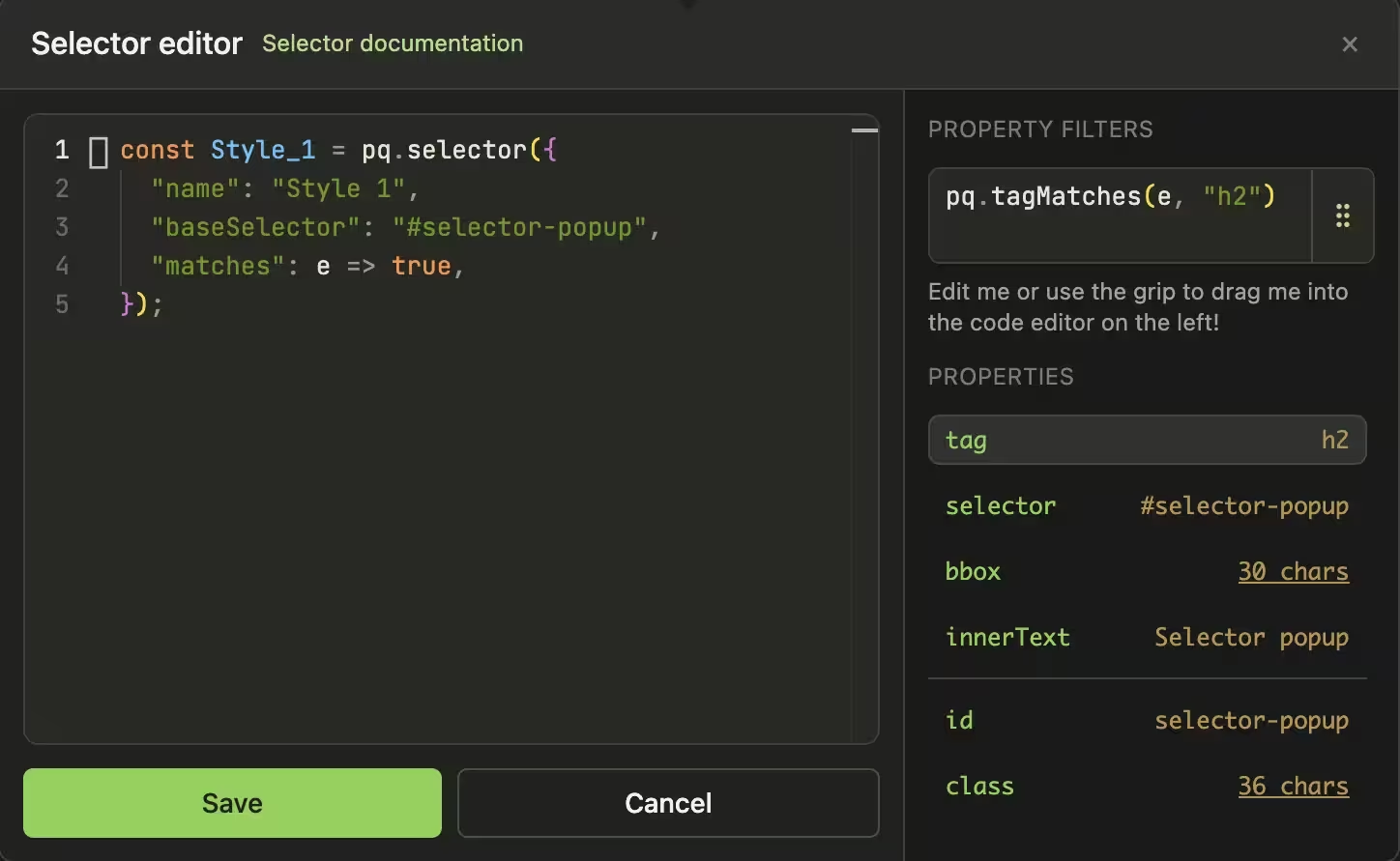
The selector popup opens from Select -> Save selector.
What you do in the popup:
- Edit the generated
pq.selector(...)code in the popup editor.- You can name the variable and the
nameproperty to be whatever you want.
- You can name the variable and the
- Use the live preview snippet for the active property/filter.
- Drag the preview grip into the selector code editor to insert filter fragments.
- Save the selector.
What happens on save:
- The sidepanel validates the snippet contains
pq.selector. - It requires a
constassignment. - It checks variable-name collisions.
- If valid, it inserts the selector into the editor selector block.
Create tool
Create is currently marked as coming soon.
Planned direction in the UI:
- Generate reusable components.
- Build script settings UI and other script-driven UI pieces.
Selectors tool
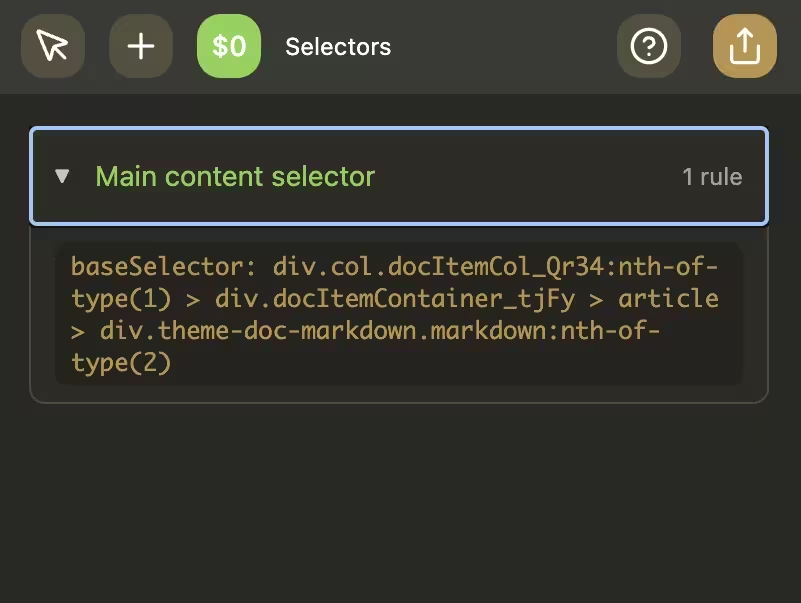
Selectors shows selector entries parsed from your selector block in the editor.
For each selector, the tool displays:
- Selector name.
- Rule count.
- Parsed rules and helper usage extracted from the selector
matchesfunction.
Use this to confirm selectors were saved correctly and to quickly audit selector logic.
Help tool
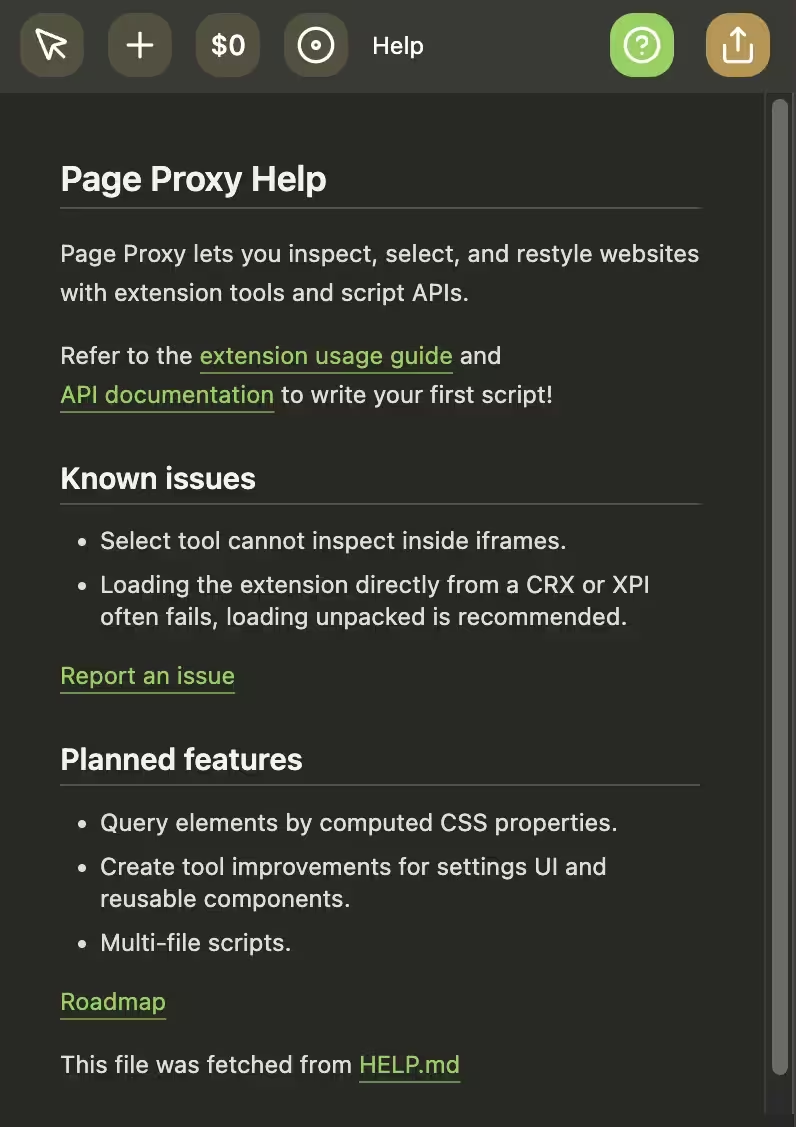
Help contains quick project references:
- Documentation link.
- Known issues list.
- Planned features and roadmap links.
Use it as the first stop when behavior seems unexpected.
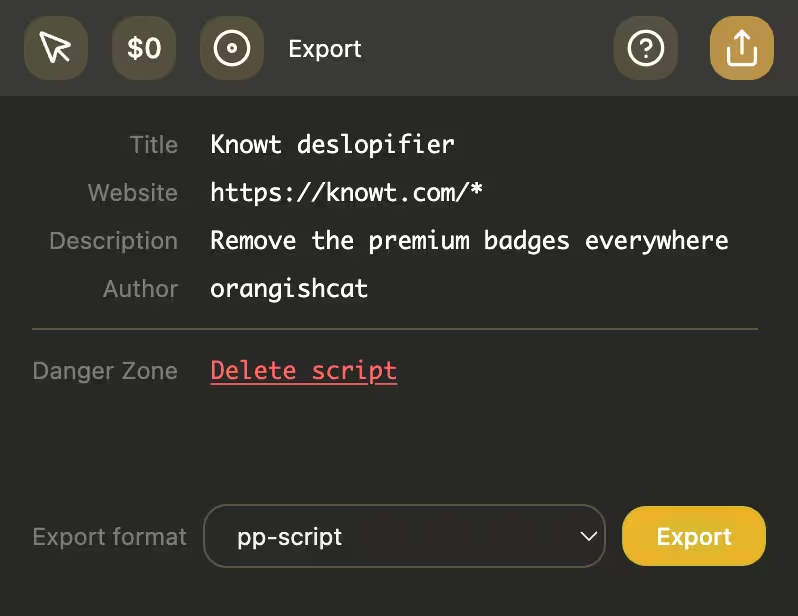
Export tool
Export packages your current script from the editor.
Current behavior:
pp-scriptexport is available now.- It exports the contents of the code editor as a
jsfile, with a snake-case version of the script name as the file name.
- It exports the contents of the code editor as a
- Other formats are visible but marked coming soon.
- Exported filename is derived from script title metadata.